
Title Block Replacementfor Autodesk Inventor
Update title blocks and borders across every drawing.
- Reads title blocks and borders from a source drawing
- Batch-process drawings from folders (incl. subfolders) or a list
- Copy data in, or replace existing title blocks/borders
- Runs on triggers — after opening or before saving


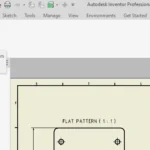
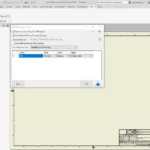
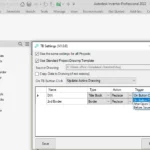
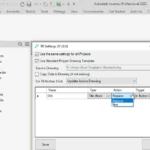
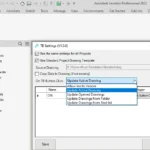
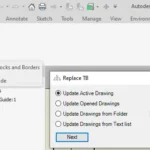
Many Inventor users need to update title blocks or borders — adding or removing information — on drawings that already exist. Fixing one drawing is easy; doing it across dozens is slow and error-prone. Title Block Replacement automates the whole job and saves that time.
Read from a source drawing
Automatically reads title blocks and borders from a source drawing and applies them across your set.
Batch from folders or a list
Process drawings from folders and subfolders, or from a defined list — unlimited title blocks and borders.
Copy or replace
Copy data into the drawings or replace the existing title blocks/borders — whichever your workflow needs.
Triggers + revision + report
Run after opening or before saving, track the current revision, with project-dependent settings and an error report.
At a glance
- Works inDrawing documents
- TriggersAfter open · Before save
- Free trial15 days, full access
- LicenceYearly or Lifetime
Capabilities
- SourceRead from a source drawing
- BatchFolders + subfolders, or a list
- ModesCopy data · or replace
- TriggersAfter open · before save
- ExtrasRevision tracking · error report
Compatibility
- Inventor2020 – 2027
- UpdatesLifetime includes 1 year free
- Guarantee14-day money-back
Download Title Block Replacement
Free 15-day trial — it starts automatically on install. Get the signed Windows installer from our Downloads page.
Only logged in customers who have purchased this product may leave a review.
Can it update many drawings at once?
Yes — read drawings from folders and subfolders or from a list, and process them in one run.
Copy data or replace it?
Both approaches are supported — copy data into the drawings, or replace the existing title blocks/borders.
Is there a free trial?
Yes — 15 days with full access.
Pick the right plan.
Subscription
- 1 Inventor add-in
- Floating license
- All updates included
- Online + offline licensing
- Email support
Everything, every year
- All BLUE MECH add-ins, one floating license
- Future add-ins included
- All updates included
- Online + offline licensing
- Email support
One-time
- 1 Inventor add-in
- Floating license
- 1 year of free updates
- Online + offline licensing
- Email support
Everything, forever
- All BLUE MECH add-ins, one floating license
- Future add-ins included
- 1 year of free updates
- Online + offline licensing
- Email support
Floating license — each seat runs on any number of workstations, just one at a time.


Reviews
There are no reviews yet.