

Short answer: Autodesk Inventor automatic save does not exist natively. Autodesk ships a Save Reminder that nags you, plus old-version backups that help only after you have saved at least once. If you want work saved without being asked, that comes from an add-in.
Most people discover this the same way. Two hours into an assembly, Autodesk Inventor stops responding, Windows offers to close the program, and the last save was “before lunch, probably”.
Then comes the search for the autosave folder — the one Word has, the one every other application seems to have. It isn’t there.
Why Autodesk Inventor has no automatic save
This is a deliberate design decision, not an oversight, and it is worth understanding before you go looking for a workaround.
An Autodesk Inventor assembly is not one file. It is a web of parts, subassemblies and drawings that reference each other. Saving is a transaction across that whole web, and doing it unprompted — mid-operation, mid-edit, while a reference is momentarily inconsistent — risks writing a state that is worse than what you lost. Autodesk’s position has consistently been that forcing a save at an arbitrary moment can do more damage than the crash it was meant to protect against.
That reasoning is sound. It is also cold comfort at 4pm on a Friday.
1. Turn on the Save Reminder (do this today)
Tools → Application Options → Save tab, and set the reminder timer. Autodesk Inventor then prompts you at that interval.
It costs nothing and it is already installed, so there is no reason not to have it on.
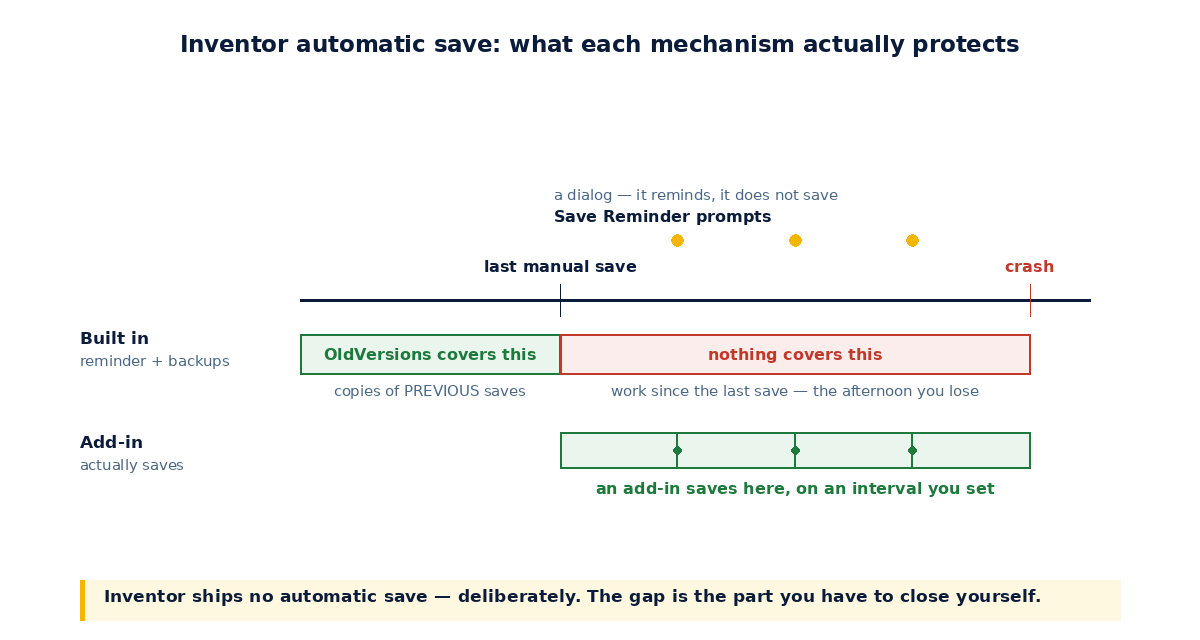
The catch: it reminds, it does not save. It is a dialog. And a dialog that appears every fifteen minutes while you are concentrating gets dismissed reflexively — most people are clicking it away within a week without reading it. It protects you exactly as much as your discipline does on your worst day, not your best one.
2. Know what the old-version backups do and don’t cover
Autodesk Inventor keeps previous versions of files in an OldVersions folder next to the originals, and the number retained is configurable in Application Options.
This is a genuine safety net and worth checking is enabled. But be precise about what it protects: it holds copies of previous saves. It is how you recover from “I ruined this model an hour ago and saved over it”. It does nothing whatsoever for work that was never saved, which is the crash scenario.
Two different problems. Confusing them is why people believe they are covered when they are not.
3. Reduce how often Autodesk Inventor falls over
Less satisfying than a recovery feature, but it moves the number more than either of the above:
- Use a certified graphics driver. Display drivers are the single most common cause of Autodesk Inventor instability, and the newest driver is not the same thing as the certified one.
- Work on local files, not a network share. A dropped SMB connection mid-save is a genuinely bad moment.
- Keep large assemblies on the current service pack. Stability fixes are the bulk of what is in them.
Doing all three does not make crashes impossible. It makes them rare enough that the remaining risk is one you can manage.
4. An add-in that gives Autodesk Inventor automatic save
If you want the behaviour Autodesk Inventor deliberately does not ship, an add-in is the route — and this is precisely why we built AutoSave for Autodesk Inventor.
It saves your documents in the background after a set interval, across parts, assemblies, drawings and presentations. The design details that matter:
- It only saves when something has actually changed, so an open-but-idle document is not rewritten for no reason.
- The interval is yours to set — the default is 30 minutes, and we suggest no longer than 15 if the work is valuable.
- A toolbar icon shows the state at a glance: blue for enabled, red for disabled, one click to toggle. It is enabled by default.
- File migration prompts are handed to you through the Save dialog of Autodesk Inventor itself, so you keep the choice to save or cancel rather than having it made for you.
Be honest about the trade-off, because the reasoning at the top of this article does not stop being true when you install something. Automatic saving means a save can land at a moment you did not choose. In exchange you stop losing afternoons. For most people that trade is obviously worth it — but it is a trade, and anyone who tells you otherwise is selling harder than we are.
What we would actually do
All four, in this order:
- Turn the Save Reminder on now — it is free and takes ten seconds.
- Confirm OldVersions is enabled and keeping enough versions to be useful.
- Sort out the graphics driver, because it is probably the reason you are reading this.
- Add automatic saving if losing two hours of modelling would genuinely hurt.
Steps 1 to 3 cost nothing. Do those first regardless of what you decide about step 4.
AutoSave has a 15-day free trial, which is long enough to find out whether it ever actually catches anything. Browse the add-ins.