

Short answer: to copy Inventor model with drawing files together, use Save As followed by Replace Model Reference, Pack and Go, Design Assistant, or an add-in that does both in one step. Which one you want depends on why you are copying — that is what the rest of this is about.
There is a particular kind of afternoon that every Inventor user has had at least once.
You copy a part in Windows Explorer, rename it, open the drawing — and the drawing is still showing the original part. Or worse: it opens fine, looks fine, and nobody notices until three weeks later, when somebody manufactures from a drawing that was quietly pointing at the wrong model.
The reason is simple. File Explorer doesn’t know what a reference is. Inventor does.
An .idw or .dwg drawing doesn’t contain your model — it points at it. An assembly doesn’t contain its parts, it points at those too. Copy the files underneath without telling Inventor, and the pointers keep aiming at the originals.
Here are four ways to do it properly, in rough order of effort.
1. Save As and Save Copy As — plus the extra step for drawings
The simplest answer is already in Inventor, and it’s where most people start: File → Save As.
The two variants do different things, and the difference matters here. Save As writes the document under a new name and leaves you working in the new file. Save Copy As writes a copy under a new name and leaves you in the original — nothing in your session points at the copy at all.
For a part or an assembly on its own, that is the whole job. Done.
For a drawing it isn’t — and this is the step that catches people out. Copying the .idw / .dwg gives you a new drawing that is still pointing at the original model. Duplicating the model as well doesn’t change that; the new drawing has no idea the new model exists. You have to repoint it yourself, with Inventor’s Replace Model Reference command (Manage tab, Modify panel), so the copied drawing describes the copied part.
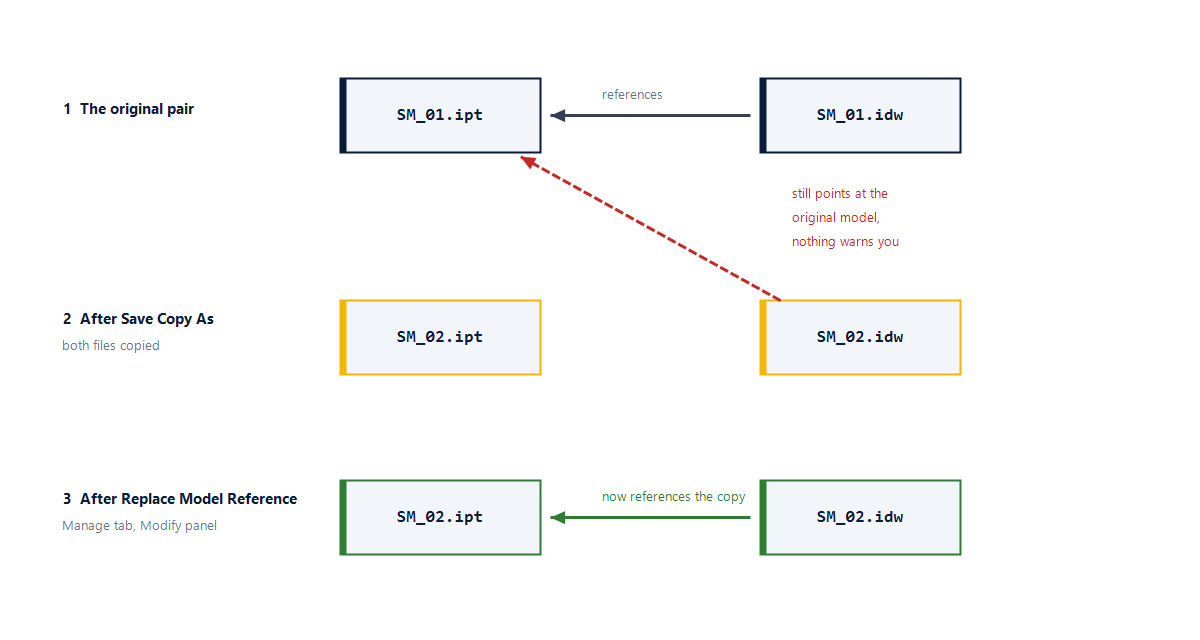
Use it when it’s a one-off, you’re already in Inventor, and there’s nothing to install or learn.
The catch: it is two save operations plus a reference swap, every time, for every document. Fine once. The problem is that it’s easy to half-finish — copy both files, forget the reference swap, and you now have a new drawing quietly documenting the old part. That is the exact failure this article is about, and Save As is where it usually gets introduced.
2. Pack and Go
Built into Inventor. Right-click a file in Explorer → Pack and Go, and it collects the document plus everything it references into one folder, with the links rewritten.
Use it when you’re sending a job out of the house — to a supplier, a customer, or into an archive. It is the most complete option: it follows the whole reference tree, including content-centre parts and drawings, and you can review what it collected before it runs.
The catch: it’s built for packaging, not for day-to-day duplication. You get a folder with everything in it, which is exactly what you want for a handover and slightly more than you want when you just need one part copied.
3. Design Assistant → Copy
Inventor’s Design Assistant can copy a set of files and repair the references between them. Open Design Assistant, switch to the Manage view, select the files, and use Copy to create the duplicates with their internal links repaired.
Use it when you need to duplicate a specific set of documents rather than package a whole job, and you want control over which files come along and what they’re named.
The catch: it’s manual. Fine occasionally. Less fine when it’s a Tuesday-morning routine and you’re doing it for the fortieth time this month.
4. Let an add-in do it
If copying a model together with its drawing is a daily job rather than an occasional one, the honest answer is that you shouldn’t be thinking about it at all.
That is what we built Copy Assistant for. It installs as its own button in the BM tab of the Inventor ribbon, so it is available from whatever document you already have open.
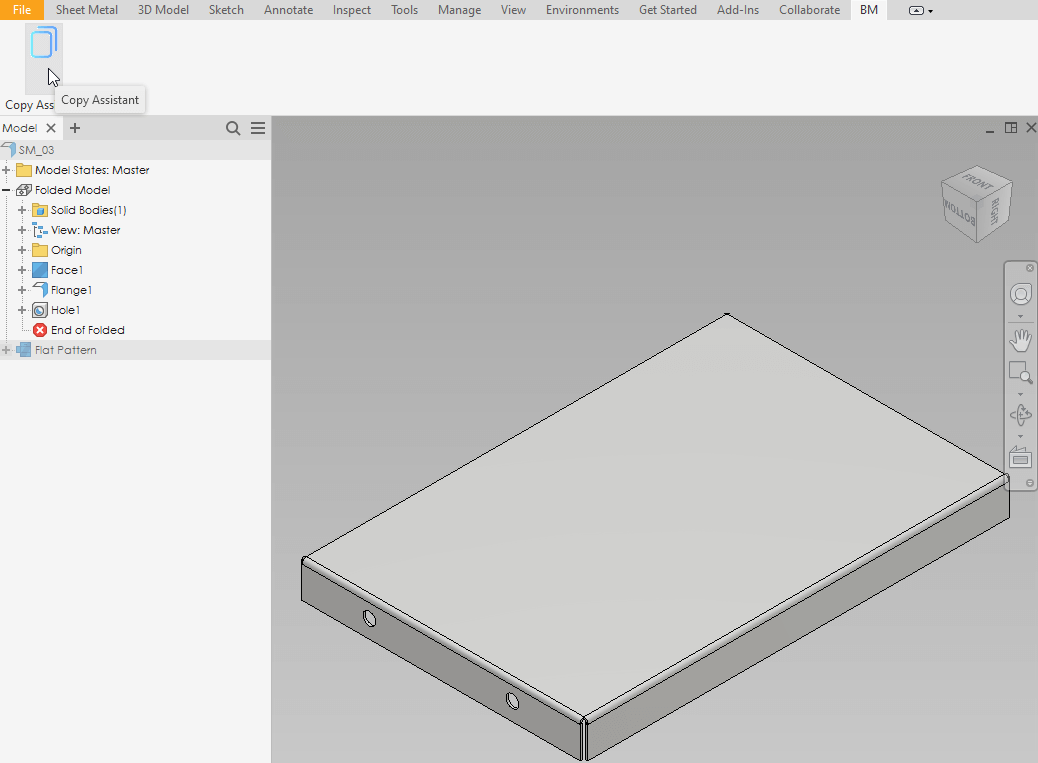
Pick the document, choose where it goes, and it copies the part or assembly and finds its matching .idw / .dwg drawing in one step — same folder or a new location, drawing included or not, your choice. The Copy Drawing (if exist) option is the whole point: tick it and the drawing travels with the model, pointed at the copy, with no separate reference swap to remember.
It also helps when you’re replacing a component inside an assembly, which is the same reference problem wearing a different hat — copy the component, swap it in, and let the add-in repair what points where.

Copy Assistant is completely free. Not a trial, no licence key, no expiry — we built it because the workflow annoyed us too.
Watch: copy Inventor model with drawing, start to finish
A four-minute walkthrough of the whole thing — copying parts and assemblies together with their drawings, and what the add-in does about the references:
If you want the wider version of the same subject — every way of copying documents inside Inventor, and exactly why Explorer breaks the drawing’s reference to the model — that is covered here:
The failure mode to actually worry about
Notice that all four methods above solve the same problem, and that Explorer’s version of the job doesn’t fail loudly. That’s the real risk. A broken reference doesn’t throw an error or refuse to open — the copy looks fine and the drawing looks fine. It just describes a different part than the one you think you’re making.
The half-finished Save As is the same story with a different cause: nothing warns you that the reference swap never happened. By the time anyone notices, the drawing has usually been through a review and out to the shop floor. That is why it is worth settling on one method and using it every time, even for the “quick” copies — especially for the quick copies, in fact, because those are the ones nobody checks.
So whichever method you pick, pick one. The habit matters more than the tool.
Every BLUE MECH add-in is documented at docs.bluemech.de, and the full range is in the shop.