Inventor SheetSync Indexer
, ,

Inventor SheetSync Indexer

4,99 

VAT exempted according to UStG §19

Stop manually renaming exports. With SheetSync ¦ Explorer, your digital archive is as organized as your engineering

Categories: , , Tags: , ,

Inventor SheetSync Indexer


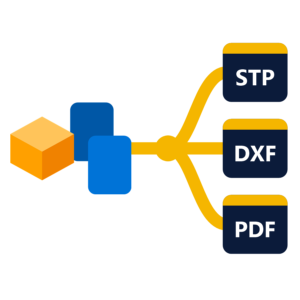
Inventor SheetSync Indexer is an essential workflow utility for Autodesk Inventor that solves the “Export Identity Crisis.” By embedding dynamic, Windows-compliant indexing directly into your sheet names, it ensures that every PDF, DXF, and DWG you export carries its DNA into the file system.

The Problem: The “Pile of Files”

Standard exports lose their context. Once a sheet leaves Inventor, its position in the drawing set is gone. This makes sorting, batch printing, and revision tracking a manual nightmare in Windows Explorer or PLM systems.

The Solution: SheetSync ¦ Explorer

  • Sequential Filename Integrity: By prefixing the sheet name with a dynamic index, your exported files automatically sort themselves in the correct order in any Windows folder.

  • Unified Documentation: Your PDF bookmarks and DXF filenames will finally match your physical drawing set, making communication with the shop floor or clients seamless.

  • The ¦ Divider Strategy: Uses the “Broken Bar” character—a professional, high-visibility separator that is 100% legal for Windows filenames but stands out from standard part numbers.

  • Zero-Waste Indexing: Automatically calculates whether you need 01, 001, or 0001 based on your total sheet count, keeping your file list perfectly aligned.

“Don’t just name your sheets; index your exports. SheetSync ¦ Explorer ensures that your digital files are as organized as your engineering.”

To make Inventor SheetSync Indexer a permanent part of your workflow, you should move it from a local document rule to an External Rule. This allows you to use it across every drawing you open without rewriting the code.


1. Setting up Inventor SheetSync Indexer as an External Rule

External rules are stored as separate files on your drive or network, making them easy to share with a team.

– Just copy the File to (BM_SheetSync_Indexer.iLogicVb) to your external Rules Folder

OR

  • Step 1: Open the iLogic Browser (Manage Tab > iLogic Panel > iLogic Browser).

  • Step 2: Click the External Rules tab.

  • Step 3: Right-click in the space and select Add External Rule.

  • Step 4: Save the file as BM_SheetSync_Indexer.iLogicVb in a common folder (e.g., C:\CAD_Standards\iLogic\).

  • Step 5: Paste the code into the editor and hit Save.


2. Automating with Event Triggers

You can make the indexing “invisible” by forcing it to run during specific actions. This ensures your sheets are always indexed before you even think about exporting.

To set this up:

  1. Go to the Manage tab > iLogic panel > Event Triggers.

  2. Select the Rules tab (to apply to all drawings) or Document tab (just for the current one).

  3. Find the following events and drag your SheetSync rule into them:

Event Benefit
After Open Document Instantly cleans and indexes the sheet list as soon as you start working.
Before Save Document Guarantees that the names are perfectly synced right before the file hits the server.
After Drawing View Change (Optional) Useful if you want the names to update as soon as you modify the content.

3. Implementation Logic

The code is designed to be “Idempotent”—meaning it doesn’t matter how many times you run it. It always:

  1. Looks at the browser.

  2. Strips the old ¦ 01 ¦ prefix.

  3. Re-applies the correct index based on the current order.

Warning: If you use Vault, ensure the file is “Checked Out” before the rule runs on a Save trigger, as the rule modifies the document structure

Reviews

There are no reviews yet.

Only logged in customers who have purchased this product may leave a review.