

Short answer: Autodesk Inventor drawing automation is built up in layers — a good drawing template, sheet formats, view styles, then iLogic rules for the repetitive placement, and an add-in when you want the whole drawing produced in one step. Most teams get 80% of the benefit from the first two and never realise it.
Here is the test for whether this article is for you.
Open the last five drawings your team released. If the base view sits in roughly the same place, at roughly the same scale, with the same three projected views, the same dimension style and the same title block — then you are not really drawing. You are re-typing a form that you have already filled in hundreds of times.
That is the work worth automating. Not the clever detail views. The identical 90%.
1. Start where the leverage is: the drawing template
Every drawing you create inherits from a template, and most shops are still using a lightly-edited copy of the one Autodesk shipped. That is the single biggest missed opportunity in Autodesk Inventor drawing automation, because everything downstream — every rule, every add-in — starts from whatever the template already decided.
A template that is actually doing its job carries your drafting standard, dimension and text styles, layers, sheet sizes, the border, and the title block with its properties already mapped to iProperties. Autodesk’s own notes on templates for drawings are worth twenty minutes if you have never set one up deliberately.
Use it when: always. This is not optional; it is the foundation the other four layers sit on.
The catch: a template only applies to new drawings. Fixing the template does nothing for the 400 drawings already in the project folder — see the section on existing drawings below.
2. Sheet formats — the layer almost nobody uses
A sheet format is a saved arrangement of views and sheet setup that you can drop onto a model. Expand Drawing Resources in the browser and you will find a Sheet Formats folder sitting there, usually untouched.
Define a format once — A3 landscape, front view at 1:2, top and right projected, isometric bottom-right — and creating a new sheet from it places all of those views against the model you pick. For a shop where 70% of parts genuinely do take the same view arrangement, this is close to free automation. Autodesk documents the folder under working with drawing resources.
Use it when: your parts fall into a handful of recognisable shapes — brackets, shafts, plates — each wanting a predictable view set.
The catch: it places views, and stops. Dimensions, balloons and parts lists are still yours to add, and a format that assumes a scale will fight you the moment a part is twice the size you designed the format around.
3. iLogic rules for Autodesk Inventor drawing automation
iLogic is the rule engine built into Autodesk Inventor, and it will happily drive drawing creation: create a sheet, place a base view, project from it, retrieve model dimensions, fill iProperties, export a PDF at the end.
It is genuinely powerful and it is already installed. If your automation has to encode something only your company knows — a numbering convention, a customer-specific sheet, a rule about which parts get a flat pattern — iLogic is the honest answer, because no off-the-shelf tool can guess your business logic.
Use it when: the rule is specific to your company and stable enough to be worth writing down in code.
The catch — and it is the one people underestimate: you now own software. Someone has to maintain those rules through Autodesk Inventor upgrades, through the person who wrote them leaving, and through the day a model is built slightly differently and the rule places a view on top of the title block. Teams routinely start here and quietly abandon it a year later. Budget for maintenance or don’t start.
4. Fix the drawings you already have
Everything above improves the next drawing. The awkward question is the folder of existing ones — a new border, a changed company address, a revised title block.
Autodesk Inventor will let you edit a title block definition and push it to the sheets within one drawing. Across hundreds of drawings there is no native batch command, which is why this job usually gets done by an intern or not at all. We covered the options for that specific problem in how to change the title block in Autodesk Inventor across hundreds of drawings.
5. An add-in that produces the whole drawing
The last layer is a tool that takes the model and returns a finished drawing rather than a starting point.
This is what our own Automatic Drawing Creator does: you pick the model, and it builds the views (front, projected, isometric, and flat patterns for sheet metal), places overall and model dimensions, adds bend notes, fills the title block from your template, and for assemblies generates the parts list and balloons from your BOM. There is an Update command for when the model changes afterwards.
Use it when: the drawings are repetitive and the value is in getting a complete, consistent sheet in one step rather than in encoding unusual company rules.
The catch: it still works from your template and your standard, so a badly-configured template produces badly-configured drawings faster. Fix the template first — which is why this article starts there and not here.
Which layer should you actually do?
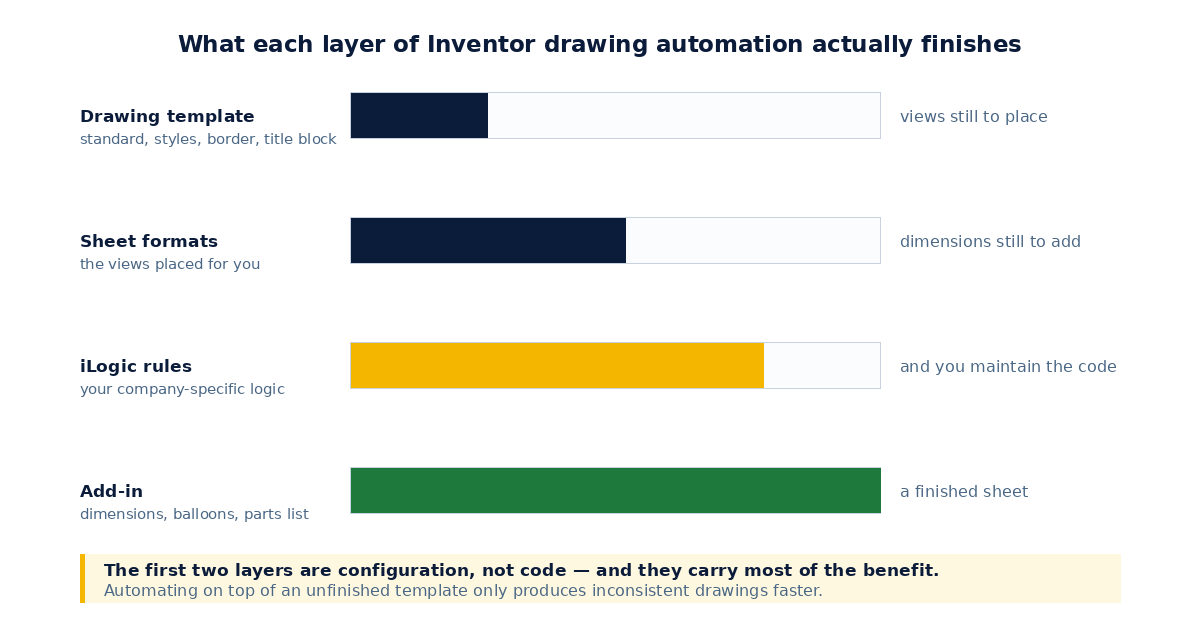
In order, and stopping as soon as the pain goes away:
- Get the template right. Costs an afternoon, benefits every drawing forever.
- Add sheet formats for your two or three most common view arrangements.
- If the remaining work is company-specific logic, write iLogic rules — and assign an owner.
- If the back catalogue is the problem rather than new drawings, treat that as its own job.
- If the remaining work is volume of ordinary drawings, use an add-in.
The mistake we see most often is jumping to step 3 or 5 while step 1 is still unfinished. Automation applied to an inconsistent standard does not give you consistency — it gives you inconsistency at scale.
Our add-ins for Autodesk Inventor 2020–2027 come with a 15-day free trial, so you can measure the difference on your own drawings before deciding. Browse the add-ins.